

Discover how to identify which is the fastest USB port on your computer
USB 3.0 ports and higher are capable of offering significantly faster file transfer speeds than the rest

It's probably happened to you: you connect a flash drive or an external hard drive to your computer and the file transfer takes forever. This is probably because you're not using the fastest USB port your machine has. Identifying the fastest USB port is key to optimizing data transfer and saving time when moving large files or working with external equipment. But how do you know which one it is?
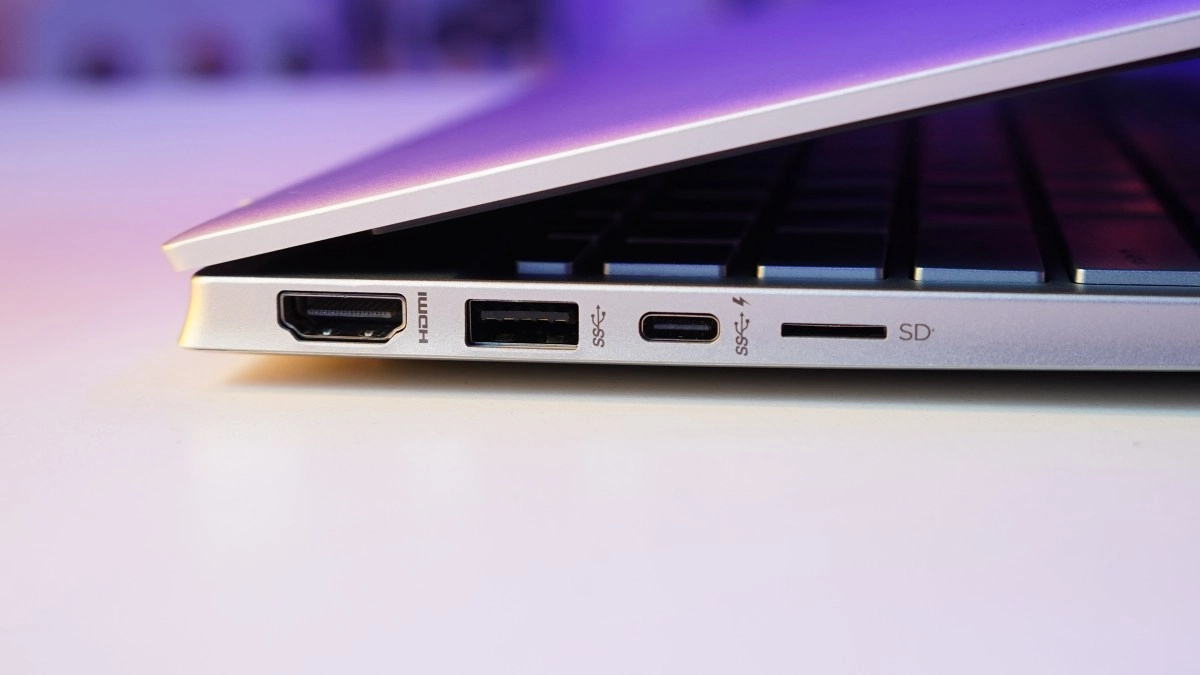
A simple way is to look at the port colors. USB 3.0 ports or higher are usually marked with a blue color, unlike USB 2.0 ports, which are typically black or gray. It's also common to see a symbol next to the port that says "SS," which stands for SuperSpeed, or numbers like 5, 10, and 20, indicating the maximum speed in gigabits per second (5 Gbps, 10 Gbps, 20 Gbps, respectively). Another symbol that may appear is a lightning bolt, indicating that the port supports Thunderbolt or a high-performance version.
If you want to check further, in Windows you can open "Device Manager" and look in the "Universal Serial Bus controllers" section to identify which ports are USB 3.0 or higher. Additionally, there are free tools like CrystalDiskMark or Blackmagic Disk Speed ??Test that measure the actual speed of a connected device and help you diagnose which port offers the best performance.
This way you can also check which cables are the fastest, as these accessories directly affect the final speed.
Advantages of using fast USB ports
The main advantage offered by a fast USB port is a drastic reduction in file transfer time. While USB 2.0 offers a maximum speed of 480 Mbps (megabits per second), USB 3.0 can reach up to 5 Gbps, that is, more than 10 times faster. More modern versions like USB 3.1 and USB 3.2 increase those figures to 10 and 20 Gbps respectively, making transferring large video files or backups a matter of seconds instead of minutes.
But it's not just the transfer speed that improves. USB 3.0 ports...USB 2.0 ports are also more energy efficient. They use a management system that reduces power consumption when the device is not in use, helping to save battery life on laptops and tablets. Additionally, these ports can supply more power to connected devices, allowing for faster charging of phones and other gadgets. Another crucial advantage is backward compatibility: you can connect USB 2.0 or even 1.0 devices to USB 3.0 ports, although they will operate at a lower speed. This gives you the flexibility to use older accessories, but to take full advantage of the speed, it's vital to connect a device compatible with the high-speed port version. How to further improve transfer times: Identifying and using the fastest USB port is only the first step in improving your file transfers. It's also important to optimize the settings of both your operating system and USB device. For example, on Windows, by accessing the device properties in Device Manager, you can select the "Policies" tab and enable the "Better performance" option. This allows the system to prioritize speed over quick removal, resulting in faster transfers. Also, if your USB drive is formatted in FAT32, the speed will be limited. Converting or formatting it to NTFS significantly improves efficiency when transferring large data files. Finally, choosing cables and external hard drives certified for USB 3.0 or higher is crucial. A fast port is useless if the accessories don't meet the standard. Diagnostic tools can help you identify the best cable to optimize performance. Using the fastest USB port not only saves you time but also improves energy efficiency and the overall experience with external devices. For any user who handles large files or wants to get the most out of their gadgets, knowing how to identify and use the correct USB port is an indispensable tech trick.
How to further improve transfer times
Identifying and using the fastest USB port is only the first step to improving your file transfers. It's also important to optimize the settings of both your operating system and USB device.
For example, in Windows, by accessing the device properties in Device Manager, you can select the "Policies" tab and enable the "Best performance" option; this allows the system to prioritize speed over quick removal, resulting in faster transfers. Also, if your USB drive is formatted in FAT32, the speed will be limited. Converting or formatting it to NTFS significantly improves efficiency when transferring large files.
Finally, choosing cables and external hard drives certified for USB 3.0 or higher is crucial. Having a fast port is useless if the accessories don't meet the standard.
Diagnostic tools can help you identify the best cable to optimize performance. Using the fastest USB port not only saves you time, but also improves energy efficiency and the overall experience with external devices. For any user who handles large files or wants to get the most out of their gadgets, knowing how to identify and use the correct USB port is an indispensable tech trick.
How to further improve transfer times
Identifying and using the fastest USB port is only the first step to improving your file transfers. It's also important to optimize the settings of both your operating system and USB device.
For example, in Windows, by accessing the device properties in Device Manager, you can select the "Policies" tab and enable the "Best performance" option; this allows the system to prioritize speed over quick removal, resulting in faster transfers. Also, if your USB drive is formatted in FAT32, the speed will be limited. Converting or formatting it to NTFS significantly improves efficiency when transferring large files.
Finally, choosing cables and external hard drives certified for USB 3.0 or higher is crucial. Having a fast port is useless if the accessories don't meet the standard.
Diagnostic tools can help you identify the best cable to optimize performance. Using the fastest USB port not only saves you time, but also improves energy efficiency and the overall experience with external devices. For any user who handles large files or wants to get the most out of their gadgets, knowing how to identify and use the correct USB port is an indispensable tech trick.Knowing how to identify and use the correct USB port is an indispensable tech trick.Knowing how to identify and use the correct USB port is an indispensable tech trick.