

How to set up a WiFi network for visitors so as not to saturate your Internet connection
Learn how to configure a WiFi network for visitors and share your key without affecting your speed or browsing
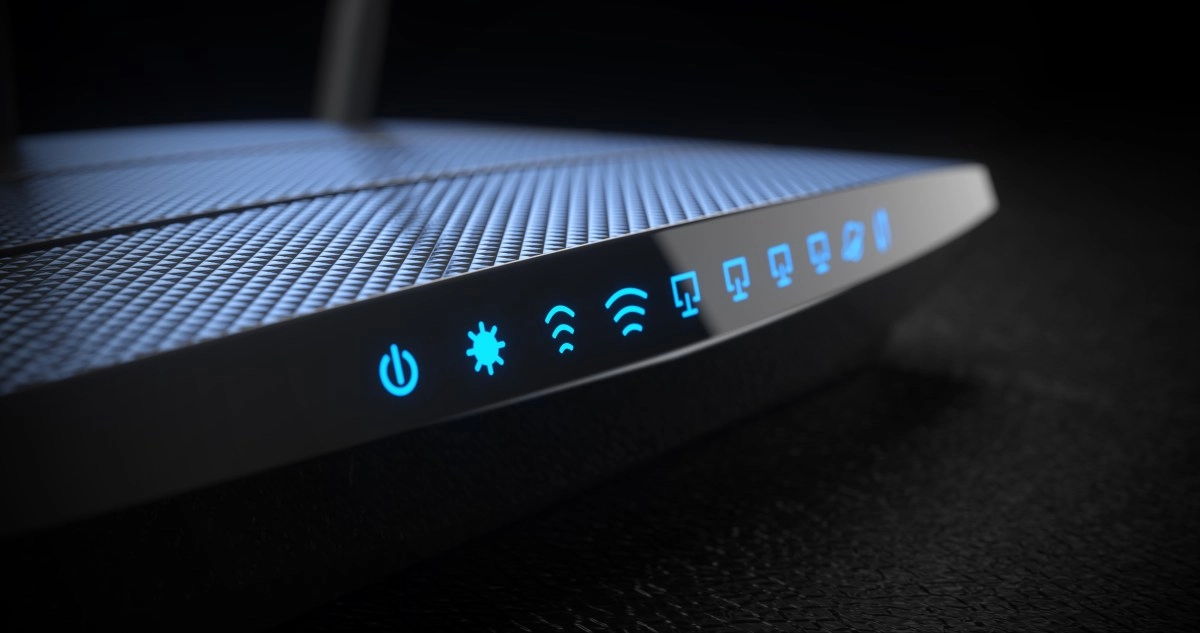

Setting up WiFi for visitors is one of those simple decisions that greatly improves digital life at home. It allows you to share the connection with family, friends or visitors without handing over the main key of your network or putting your browsing, your security or the speed you use daily at risk.
Guest network, the most practical option
Most modern routers already include a guest networking feature. That network creates separate access for visitors, with their own password and, in many cases, with usage limits that prevent connected equipment from accessing your personal devices. That means your laptop, smart TV, cameras or files are better protected.
The big advantage is that you can share the Internet without sharing your entire digital home. In practice, that reduces the risk of someone seeing other connected computers, accessing shared folders, or touching settings they shouldn't. Additionally, if your router allows it, you can turn off that network when you don't need it, or change its password without affecting the main one.
How to configure the guest network on the router
The process is usually quite similar between brands. Enter your router's administration panel from the browser, look for the guest network section and activate it. Then define a different name for that network, a new password and, if your computer allows it, check options such as isolating devices or restricting access to the local network.
An important detail is to check if your router allows you to assign the guest network to the 2.4 GHz band, the 5 GHz band, or both. That helps distribute traffic better. If you have many devices at home, it is advisable to leave the main use for your private network and reserve the secondary one for visitors. This way you better maintain order and prevent everything from competing for bandwidth at the same time.
Manage visitors' connection speed
The key is not just creating the network, but managing the traffic. If your router has QoS, device prioritization, or bandwidth limiting features, you can give more weight to your main devices and less to the visitor network. This prevents a video call, a heavy download, or a guest's streaming from affecting your browsing.
It also helps to follow these recommendations:
Simply put, the visitor network is not intended to replace your main WiFi, but rather to separate uses. Properly configured, it allows you to share your Internet password without causing your browsing to be noticeably affected.
What is a guest network in WiFi? It is a separate network within the same router, designed so that visitors can connect without entering your main network. It usually has its own password and can limit access to other devices in the house.
Does the guest network slow down my connection? Not necessarily. If you configure it well and limit its use, it should not significantly affect your main connection. The problem appears when many guest computers consume a lot of bandwidth at the same time.
Is it safer to use WiFi for visitors? Yes, because it separates guests from your personal devices. This reduces the risk of unwanted access to printers, shared files or smart devices.
Setting up this function takes just a few minutes and gives you more control, more order and more peace of mind. It is one of those small improvements that are greatly felt on a daily basis.