

Startup apps in Windows: how to prevent your computer from taking ages to boot
Disabling apps you don't need from Windows startup can speed up operating system loading times on your computer
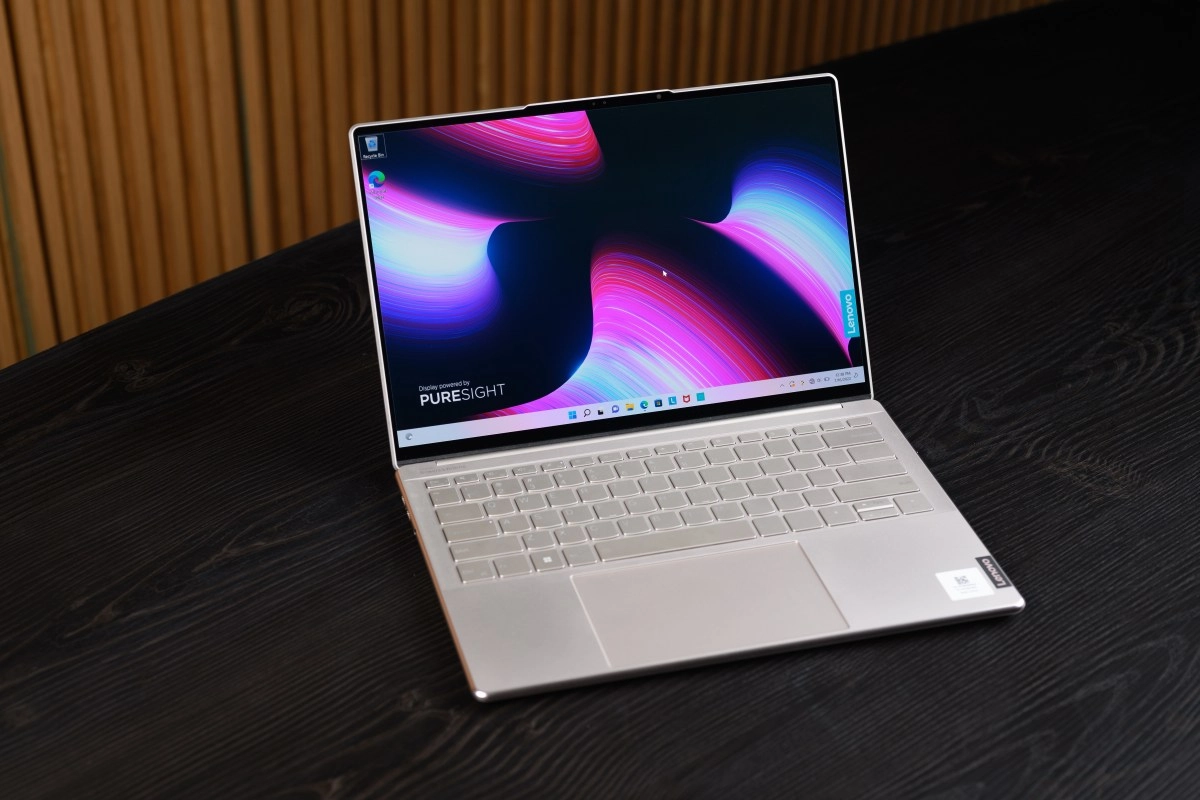

When Windows takes too long to start, the culprit is often not the system itself, but the number of apps that load automatically when you turn on your computer. The more programs that start with Windows, the slower the boot process will be, because the system has to divide memory, processor, and disk resources among more tasks from the very first second.
Why Startup Gets Slower
Every app that opens with Windows adds an extra load to the startup process. This means that the computer not only has to load the operating system, but also start services, background processes, and utilities that, often, you don't even need at that moment. In practice, this is noticeable as a longer wait before you can use your PC smoothly.
Some programs make sense at startup, such as security tools or sound drivers, but others are pure dead weight. Applications like messaging clients, game launchers, cloud sync services, or productivity suites often start even if you're not going to use them immediately.
That's where it's helpful to get organized.
How to control startup apps
Windows already includes several ways to manage this without installing anything extra. The simplest is to go to Settings > Apps > Startup and review the list of programs that have permission to start automatically. From there, you can enable or disable each app with a switch, depending on your needs.
Another useful method is to open Task Manager with Ctrl + Shift + Esc and go to the Startup apps tab. There, Windows shows which apps are enabled and also lets you disable them with a right-click. If you want a more complete review, tools like Autoruns allow you to see even startup entries that don't always appear in the basic system view.
The important thing is not to disable everything impulsively. Some applications do perform a useful function from startup, but many others just consume resources from the very first minute.
The rule of thumb is simple: if you don't use it as soon as you turn on your PC, it probably doesn't need to start automatically.
What should you keep and what shouldn't?
A sensible way to decide is to separate the essentials from the dispensable. Keep apps related to security, audio, or specific hardware active if you really need them from the start. On the other hand, disable services like messaging, game stores, music players, secondary syncers, or utilities that you only open occasionally.
It's also worth checking periodically, because many apps reactivate after an update or after installing other programs. This is quite common and explains why a computer that used to boot quickly can start to slow down without the user having changed anything significant.
A small adjustment that makes a big difference
This is one of those simple changes that often provides a noticeable improvement without messing with unusual settings. It won't turn an old PC into a new machine, but it can shave several seconds off boot time and leave you with a cleaner desktop right from the start. It also reduces background noise and helps your computer respond better right after you turn it on. The basic idea is easy to remember: fewer startup apps mean less work for Windows at boot time. If the system doesn't have to load half a dozen programs you don't use, startup becomes faster and the overall experience improves. In an age where everything wants to open automatically, checking that startup list is almost a small act of digital hygiene. It reduces background process noise and helps your computer respond better right after you turn it on. The basic idea is easy to remember: fewer apps at startup means less work for Windows at boot time. If the system doesn't have to load half a dozen programs you don't use, startup becomes faster and the overall experience improves. In an age where everything wants to open automatically, checking that startup list is almost a small act of digital hygiene. It reduces background process noise and helps your computer respond better right after you turn it on. The basic idea is easy to remember: fewer apps at startup means less work for Windows at boot time. If the system doesn't have to load half a dozen programs you don't use, startup becomes faster and the overall experience improves. In an age where everything wants to open automatically, checking that startup list is almost a small act of digital hygiene.On the other hand, disable services like messaging, game stores, music players, secondary syncers, or utilities that you only open occasionally.
It's also worth checking periodically, because many apps reactivate after an update or after installing other programs. This is quite common and explains why a computer that used to boot quickly can start to slow down without the user having changed anything significant.
A small adjustment that makes a big difference
This is one of those simple changes that often provides a noticeable improvement without messing with unusual settings. It won't turn an old PC into a new machine, but it can shave several seconds off boot time and leave you with a cleaner desktop right from the start. It also reduces background noise and helps your computer respond better right after you turn it on. The basic idea is easy to remember: fewer startup apps mean less work for Windows at boot time. If the system doesn't have to load half a dozen programs you don't use, startup becomes faster and the overall experience improves. In an age where everything wants to open automatically, checking that startup list is almost a small act of digital hygiene. It reduces background process noise and helps your computer respond better right after you turn it on. The basic idea is easy to remember: fewer apps at startup means less work for Windows at boot time. If the system doesn't have to load half a dozen programs you don't use, startup becomes faster and the overall experience improves. In an age where everything wants to open automatically, checking that startup list is almost a small act of digital hygiene. It reduces background process noise and helps your computer respond better right after you turn it on. The basic idea is easy to remember: fewer apps at startup means less work for Windows at boot time. If the system doesn't have to load half a dozen programs you don't use, startup becomes faster and the overall experience improves. In an age where everything wants to open automatically, checking that startup list is almost a small act of digital hygiene.On the other hand, disable services like messaging, game stores, music players, secondary syncers, or utilities that you only open occasionally.
It's also worth checking periodically, because many apps reactivate after an update or after installing other programs. This is quite common and explains why a computer that used to boot quickly can start to slow down without the user having changed anything significant.
A small adjustment that makes a big difference
This is one of those simple changes that often provides a noticeable improvement without messing with unusual settings. It won't turn an old PC into a new machine, but it can shave several seconds off boot time and leave you with a cleaner desktop right from the start. It also reduces background noise and helps your computer respond better right after you turn it on. The basic idea is easy to remember: fewer startup apps mean less work for Windows at boot time. If the system doesn't have to load half a dozen programs you don't use, startup becomes faster and the overall experience improves. In an age where everything wants to open automatically, checking that startup list is almost a small act of digital hygiene. It reduces background process noise and helps your computer respond better right after you turn it on. The basic idea is easy to remember: fewer apps at startup means less work for Windows at boot time. If the system doesn't have to load half a dozen programs you don't use, startup becomes faster and the overall experience improves. In an age where everything wants to open automatically, checking that startup list is almost a small act of digital hygiene. It reduces background process noise and helps your computer respond better right after you turn it on. The basic idea is easy to remember: fewer apps at startup means less work for Windows at boot time. If the system doesn't have to load half a dozen programs you don't use, startup becomes faster and the overall experience improves. In an age where everything wants to open automatically, checking that startup list is almost a small act of digital hygiene.but it can shave several seconds off boot time and leave you with a cleaner desktop right from the start. It also reduces background noise and helps your computer respond better right after you turn it on. The basic idea is easy to remember: fewer startup apps mean less work for Windows at boot time. If the system doesn't have to load half a dozen programs you don't use, startup becomes faster and the overall experience improves. In an age where everything wants to open automatically, checking that startup list is almost a small act of digital hygiene. It reduces background process noise and helps your computer respond better right after you turn it on. The basic idea is easy to remember: fewer apps at startup means less work for Windows at boot time. If the system doesn't have to load half a dozen programs you don't use, startup becomes faster and the overall experience improves. In an age where everything wants to open automatically, checking that startup list is almost a small act of digital hygiene. It reduces background process noise and helps your computer respond better right after you turn it on. The basic idea is easy to remember: fewer apps at startup means less work for Windows at boot time. If the system doesn't have to load half a dozen programs you don't use, startup becomes faster and the overall experience improves. In an age where everything wants to open automatically, checking that startup list is almost a small act of digital hygiene.but it can shave several seconds off boot time and leave you with a cleaner desktop right from the start. It also reduces background noise and helps your computer respond better right after you turn it on. The basic idea is easy to remember: fewer startup apps mean less work for Windows at boot time. If the system doesn't have to load half a dozen programs you don't use, startup becomes faster and the overall experience improves. In an age where everything wants to open automatically, checking that startup list is almost a small act of digital hygiene. It reduces background process noise and helps your computer respond better right after you turn it on. The basic idea is easy to remember: fewer apps at startup means less work for Windows at boot time. If the system doesn't have to load half a dozen programs you don't use, startup becomes faster and the overall experience improves. In an age where everything wants to open automatically, checking that startup list is almost a small act of digital hygiene. It reduces background process noise and helps your computer respond better right after you turn it on. The basic idea is easy to remember: fewer apps at startup means less work for Windows at boot time. If the system doesn't have to load half a dozen programs you don't use, startup becomes faster and the overall experience improves. In an age where everything wants to open automatically, checking that startup list is almost a small act of digital hygiene.