
If you feel like your laptop is draining faster than before, it's not just your impression. Lithium batteries wear out over time and use, and Windows has a hidden tool that tells you exactly how much their performance has dropped. The best thing is that you don't need to download any external programs or pay for a diagnosis at an electronics store.
This function is called Battery Report and is integrated into both Windows 10 and Windows 11. With it you can compare the original capacity of your battery with the capacity it really has today, something that the simple charge percentage that you see in the corner of the screen will never show you.
What is the Windows Battery Report and why you should use it
The Battery Report is a report generated by the operating system itself through a command line. Microsoft describes it as a way to get technical information about battery usage and estimated capacity, which is much more accurate than relying on the power icon alone.
The reason this report matters so much is that the Windows battery indicator usually shows you the percentage of the current capacity of the computer, not the original factory capacity. That is, your laptop can show 100% charge even though its battery can only retain, for example, 80% of the energy it stored when it was new. You only get that information with the detailed report, and that is the magic of this function.
In addition to capacity, the report gives you a recent usage history, the charge cycles the battery has had, and an estimate of how much battery life you can expect based on your current usage behavior. All this information is organized in a file that you can review whenever you want and compare with future reports to see how wear evolves.
How to activate the function and generate the report step by step
Generating the report literally takes less than a minute. These are the steps:
If you prefer to have more control over where it is saved, you can also type the full command powercfg /batteryreport /output C:\battery-report.html to choose the location yourself. Either option works equally well, so stick with the one that is most practical for you.
What data are you going to find and how to interpret it
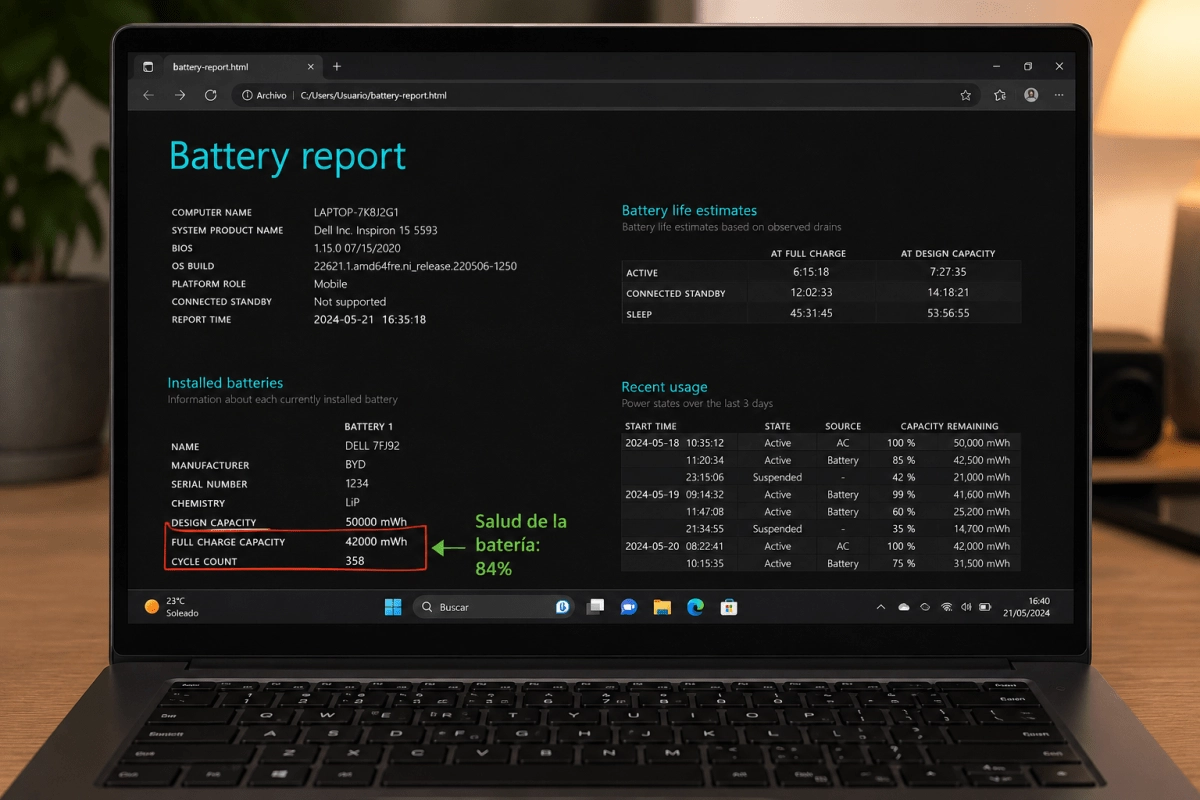
Once the report opens in your browser you will see several sections, but there are two that really matter to know the wear status: Design Capacity and Full Charge Capacity. The first is the capacity with which your battery came from the factory, and the second is the maximum capacity it can reach now, after all the use you have given it.
Comparing both numbers gives you a clear idea of how worn out your battery is. For example, if the design capacity is 50,000 mWh and the current full charge capacity is 42,000 mWh, your battery retains approximately 84% of its original health. You can calculate it yourself by dividing the current capacity by the design capacity and multiplying by one hundred.
The report also includes a history of capacity over time, which allows you to see how that number has been decreasing month by month, and a “Battery life estimates” section with a projection of autonomy based on your recent use. If you notice that the capacity has dropped below 70% or 80%, it's probably time to start thinking about a replacement, although that depends on how much you depend on the portability of your equipment.
The best thing about all this is that you can repeat the process every few months to actually track wear, rather than just guessing how long the charge lasts. With this free feature you no longer need third parties to know exactly what state your laptop battery is in.