

How to speed up your SSD in Windows 11 with a hidden feature (free and in minutes)
Following this step-by-step guide, you can speed up your computer's performance by improving how your SSD works
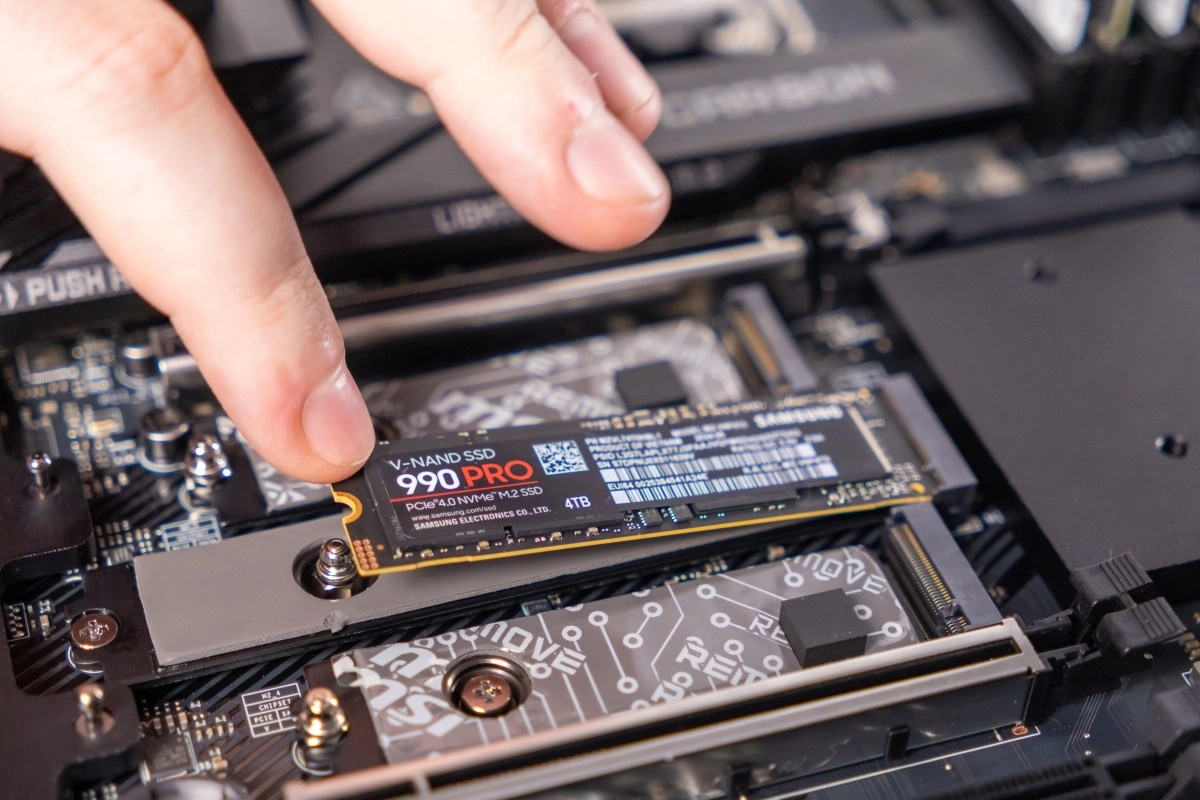

Windows 11 has a somewhat hidden setting that can give your NVMe SSD a real boost: enabling the Native NVMe driver, a "native" driver that Microsoft is already making available in Windows 11 25H2, but which isn't enabled for everyone. The best part is that, if your PC is compatible, you can notice smoother daily use (apps that open faster, fewer minor stutters, better system response) without buying anything.
The “hidden trick”: Native NVMe driver
If you use an NVMe SSD (one of the fast ones, connected via PCIe), you probably already know that they are much faster than traditional SATA SSDs. The thing is, Windows historically didn't offer a native driver that fully exploited that performance… until Microsoft introduced the Native NVMe driver (first announced for Windows Server 2025), and it turns out it's also available in Windows 11 (25H2), only “camouflaged” as an experimental feature.
So what does this option promise?
Basically, your SSD will work more efficiently, which translates into some pretty impressive numbers: up to 500 MB/s extra in sequential reads, up to 80% more IOPS, lower latency, and up to 45% less CPU usage under certain workloads. In simpler terms: the system may feel more responsive when you're opening programs, moving large files, or doing heavy multitasking, because the storage responds faster and with less "cost" to the processor.
How to know if your PC is compatible (and why it's a good idea to check beforehand)
Before touching anything, the key is to confirm if Windows is ready for this. In Device Manager, go to "Disk drives," locate your SSD, and check "Controller details": if StorNVMe.sys appears, you're theoretically in the group of computers that can enable the setting.
Now, be aware: this feature isn't a universal magic bullet.
The report itself warns that not all SSDs react the same way, and some users have experienced unusual behavior after enabling it. Reported problems include drives disappearing from the system, disks being duplicated in the drive manager, and,in games using DirectStorage, cases of increased CPU usage or lag. That's why this "trick" is recommended for people who aren't afraid to experiment and revert if something doesn't work, and not so much for those who need zero surprises on their work PC.
How to activate it in Windows 11 (without spending a dollar)
Here comes the "hidden" part: the change is activated by creating three specific values ????in the Registry (or adding them with PowerShell). It's literally the kind of setting that Windows doesn't give you with a pretty button, but it can make a difference if your NVMe SSD and your version of Windows support it.
Method 2 (PowerShell as administrator):
Want to disable it if something goes wrong? Just delete those three values ??and restart (or revert what you did in PowerShell) and you'll return to the previous behavior.