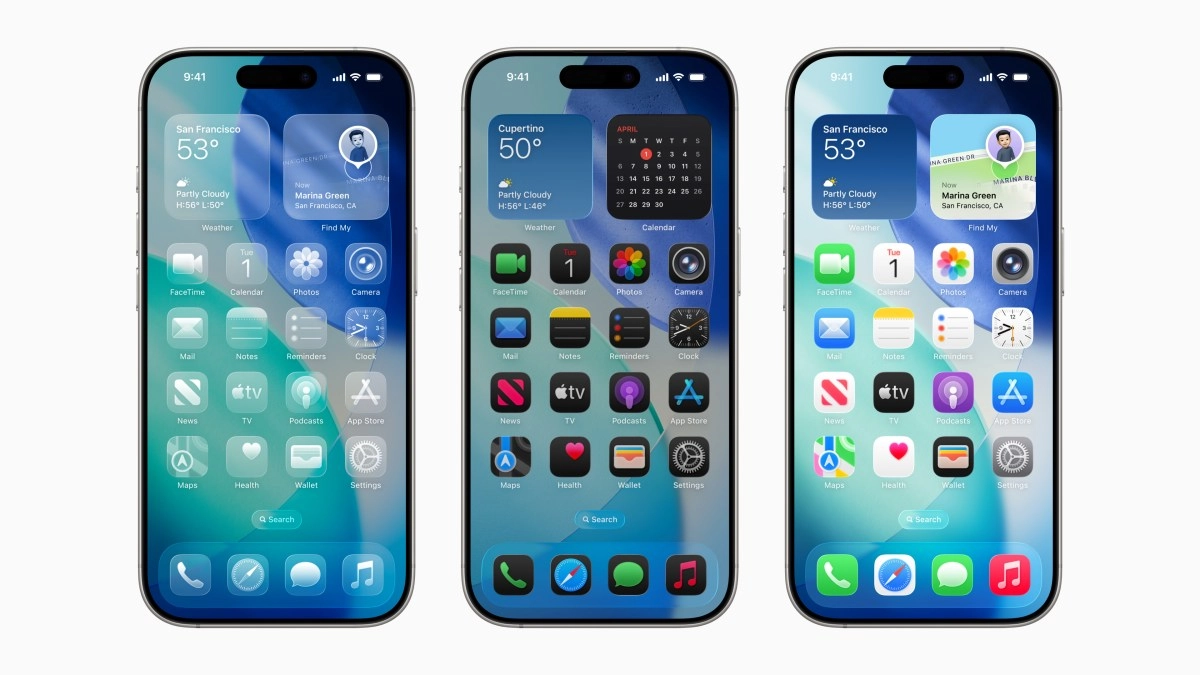

iOS 26 arrived with a visual bet that does not leave you indifferent: the transparent design or 'Liquid Glass'. This new aesthetic offers a modern and avant-garde look, with translucent elements that reflect the environment and create a liquid crystal effect throughout the iPhone interface. However, not all users like this change, as it can affect readability and visual comfort in everyday use.
Luckily, Apple includes a simple, hidden way to reduce these transparencies without completely losing the new style. Below, I'll explain how to disable this transparent design and why you might want to take that step back if the new look doesn't quite convince you.
What is the transparent design of iOS 26 and why it's causing controversy?
The 'Liquid Glass' design of iOS 26 is the biggest visual change to the iPhone interface in years. It's based on a translucent material that offers depth, reflections, and an almost three-dimensional effect that dynamically adapts to the movement of the phone. The visual result is elegant and futuristic, with windows, menus, and icons that appear to be made of real glass.
But here's the important detail: this transparency effect can affect the readability of some on-screen elements. For example, text in notifications and buttons can become difficult to read when overlaid with light backgrounds or complex images. Additionally, the movement of the background behind certain elements creates an effect that can be distracting or eye-straining after prolonged use. For this reason, many users prefer a more opaque, less "floating" design.
How to reduce the transparent effect in iOS 26 step by step
Although Apple doesn't allow you to completely eliminate the Liquid Glass effect, it has included a hidden setting that allows you to significantly reduce transparency and improve the visibility of the interface without completely losing its style.
To do this, follow these steps:
When you activate this option, you will notice how translucent elements, such as Control Center, notifications, and app icons, become more solid and opaque.This improves readability by adding a dark background to translucent areas, making text and buttons stand out more.
Also, just below this option, there is another option called Increase Contrast, which reduces the 'glow' effect around buttons and icons, making everything look flatter and simpler, which also helps your eyes.
If you ever want to revert the change, just turn off the Reduce Transparency switch to return to the original design.
Why You Might Prefer a Step Back to the Liquid Glass Aesthetic
Although the transparent design is a strong aesthetic choice and in theory offers a modern look, it is common that, when updating your iPhone to iOS 26, you feel that the interface does not convince you or simply makes it difficult to read and navigate daily.
The liquid glass effect can be especially uncomfortable when you are in bright environments, moving the phone or constantly accessing menus that previously had a more flat. Many users have reported that:
Therefore, the option to reduce transparency is ideal for those who want to enjoy the improvements and new features of iOS 26 but are not willing to sacrifice visual comfort. It is a simple solution to make your iPhone look and function more like previous versions, with fewer distractions and greater clarity on the screen.
If you are one of those who downloaded iOS 26 and after using it for a while you feel that the new appearance "is not for you," you do not have to resign yourself to using it like this, just make a few adjustments in the settings to make the design more familiar again. This way, you can stay up to date without losing the simple and legible experience you were looking for.