

Windows froze: how to use Task Manager to close an unresponsive app
If any app on your computer stops working properly, Task Manager can become your best friend
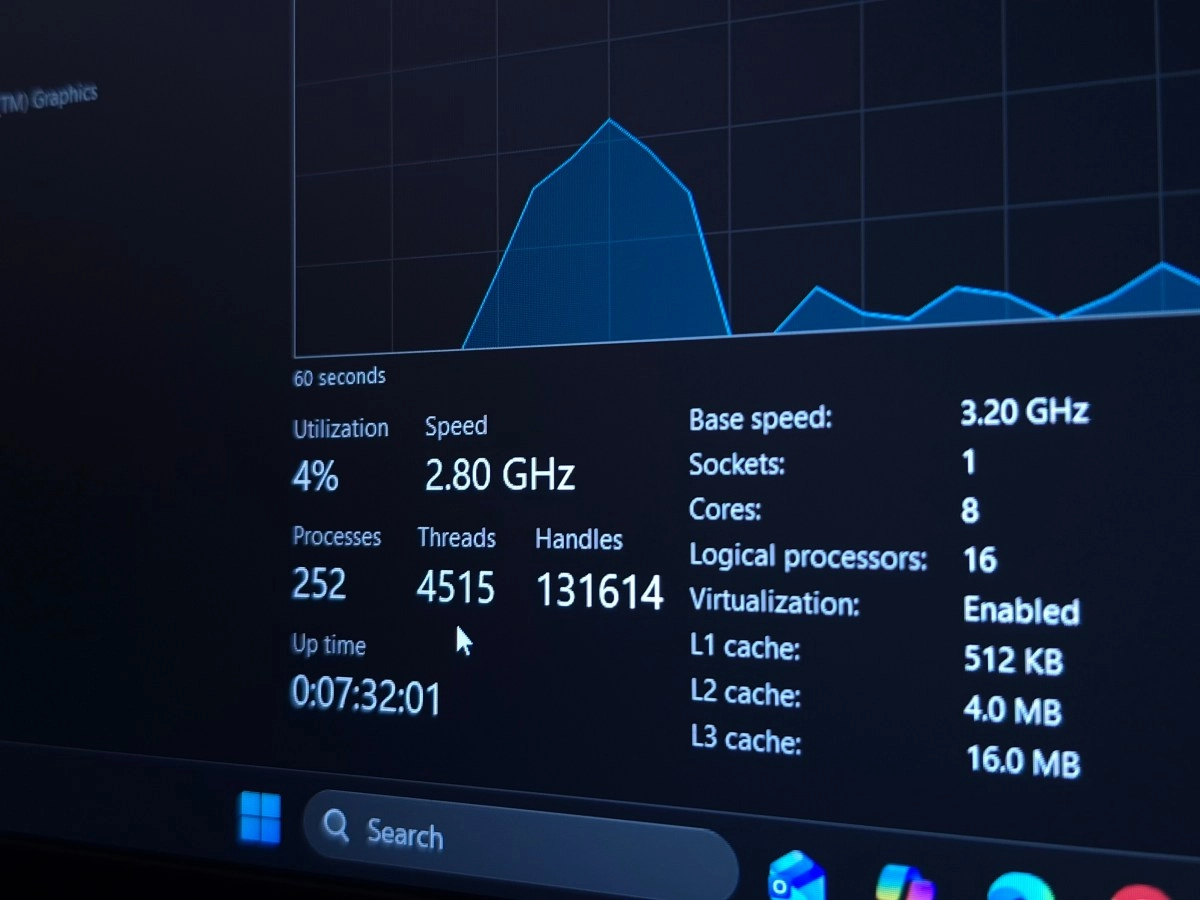

Windows Task Manager is that "panic button" you didn't know you needed. When an app freezes and your PC slows down, this tool helps you identify the culprit and force-close it without restarting your entire system. Furthermore, it lets you see what's consuming CPU, memory, or disk resources so you can understand what's happening "behind the scenes" on your computer.
What is Task Manager (and why it saves you)
In short, Task Manager is Windows' built-in utility for monitoring performance, checking which apps and processes are running, and how many resources they're using. Microsoft explains that it displays live data in tables and graphs, fed by various internal system sources. This means it's not "a pretty list"—it's real information about how Windows is running.
The best part is that when an application freezes, Task Manager is often the quickest way to regain control, close the problematic program, and get back to work.
Instead of restarting your PC and wasting time or losing unsaved changes, you can tackle the problem directly from the process list.
How to open Task Manager using shortcuts
If your computer is frozen, the last thing you want to do is search through menus. That's why it's a good idea to memorize two or three shortcuts. The most direct shortcut to open Task Manager is Ctrl + Shift + Esc, because it launches it immediately without extra steps.
Other useful ways, in case the keyboard isn't cooperating or you prefer the mouse, include
Practical tip: If you work with many apps open, learning these shortcuts saves you valuable seconds precisely when the system is slow, which is when every click feels like an eternity.
How to close an unresponsive program?
The most helpful tab is usually Processes, because there you see a list of apps and background processes, along with their resource consumption such as CPU, memory, and disk.
When a program freezes,You'll usually notice it because its status might indicate that it's unresponsive or because it's using resources in a strange way. A typical example is CPU usage at 90% for no reason.
The typical flow for "rescuing" your PC looks something like this
If the problem isn't just the main app, but it's stuck with related processes, the Details tab comes into play. It shows ungrouped processes and more information for diagnosis. There are even advanced analysis features. Microsoft describes how, when a process is stuck waiting for another, you can use Analyze wait chain to see dependencies. It's a kind of tree of who's waiting for whom and helps you decide which process to terminate to unstick the rest.
Ultimately, Task Manager becomes your trusted ally when Windows gets stubborn. With a couple of shortcuts and the Processes tab in the right place, you can regain control in seconds, close that frozen app, and get on with your day without restarting your computer.
And if this happens very often, take it as a sign to check which program is crashing, how many resources it's consuming, and whether it's worth updating it or looking for a more stable alternative.